If you'd like to share documents more easily, we offer the possibility of adding contacts to your address book and categorizing them based on your requirements – this will help decrease the time spent on sending document invitations.
How to add a new contact to your address book
1.0. Log in to your Dokobit by Signicat account.
1.1. Open the Settings by pressing the gear icon next to your name and email address.
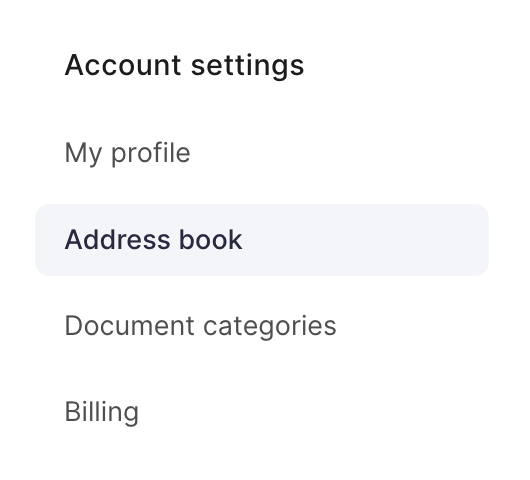
1.2. From the menu on the left, select Address book.
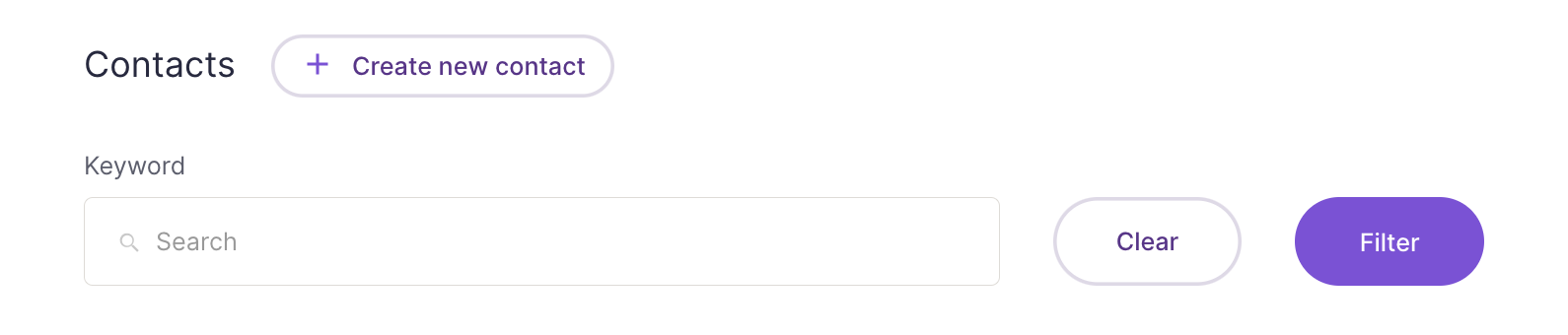
1.3. In the subsection "Contacts", press Create new contact.
1.4. Fill in all of the necessary fields and press Create.
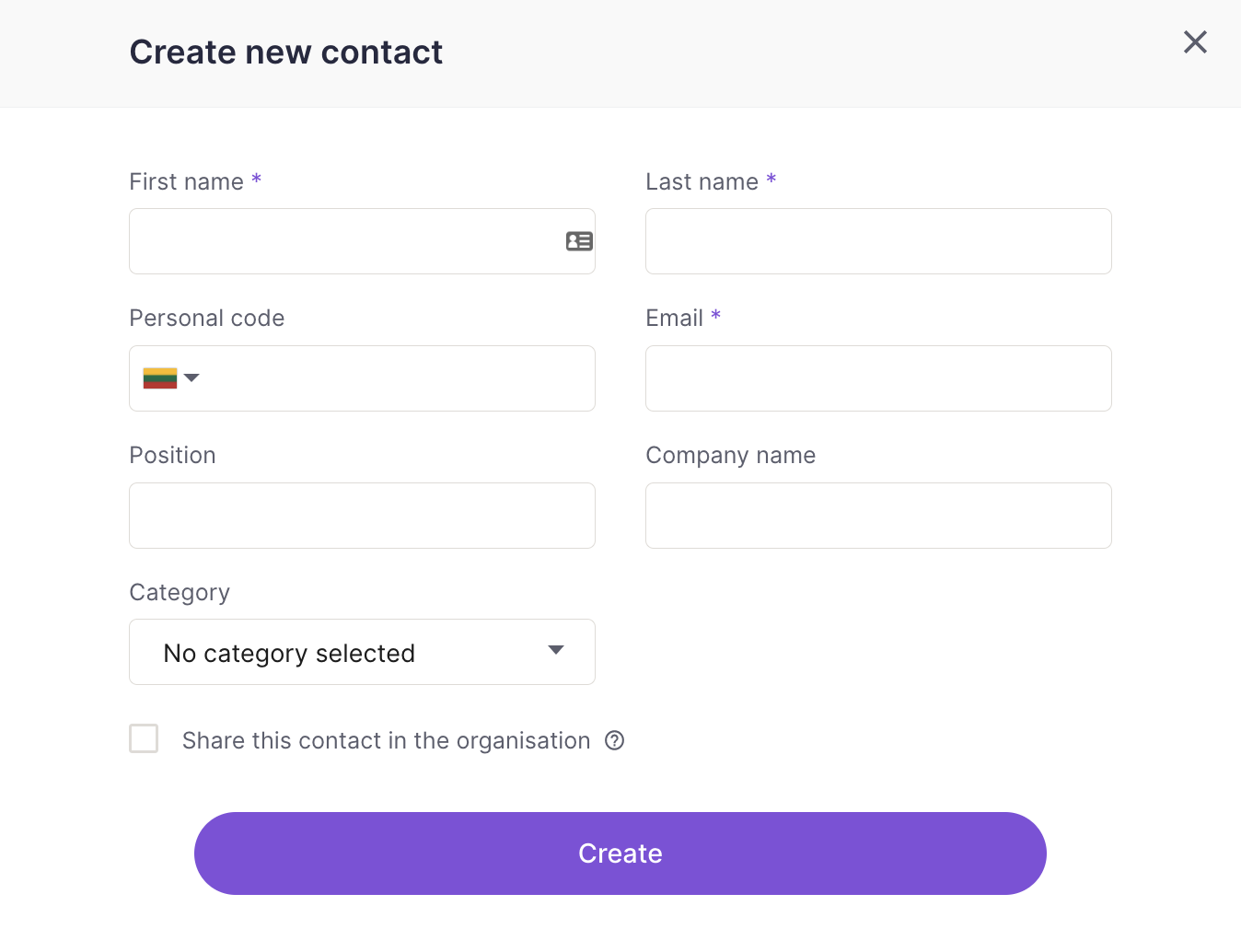
| Note: Business and Enterprise account owners and admins can also share the contact among all of the added Dokobit user accounts by checking the box "Share this contact in the organisation". |
How to edit a contact or delete them from your address book
2.0. Go to the "Address book" category of your settings, as described in the 1.0 – 1.2. steps of this support article.
2.1. In the subsection "Contacts", choose the contact you'd like to edit or delete and press the Actions button, which is located next to their information on the right.
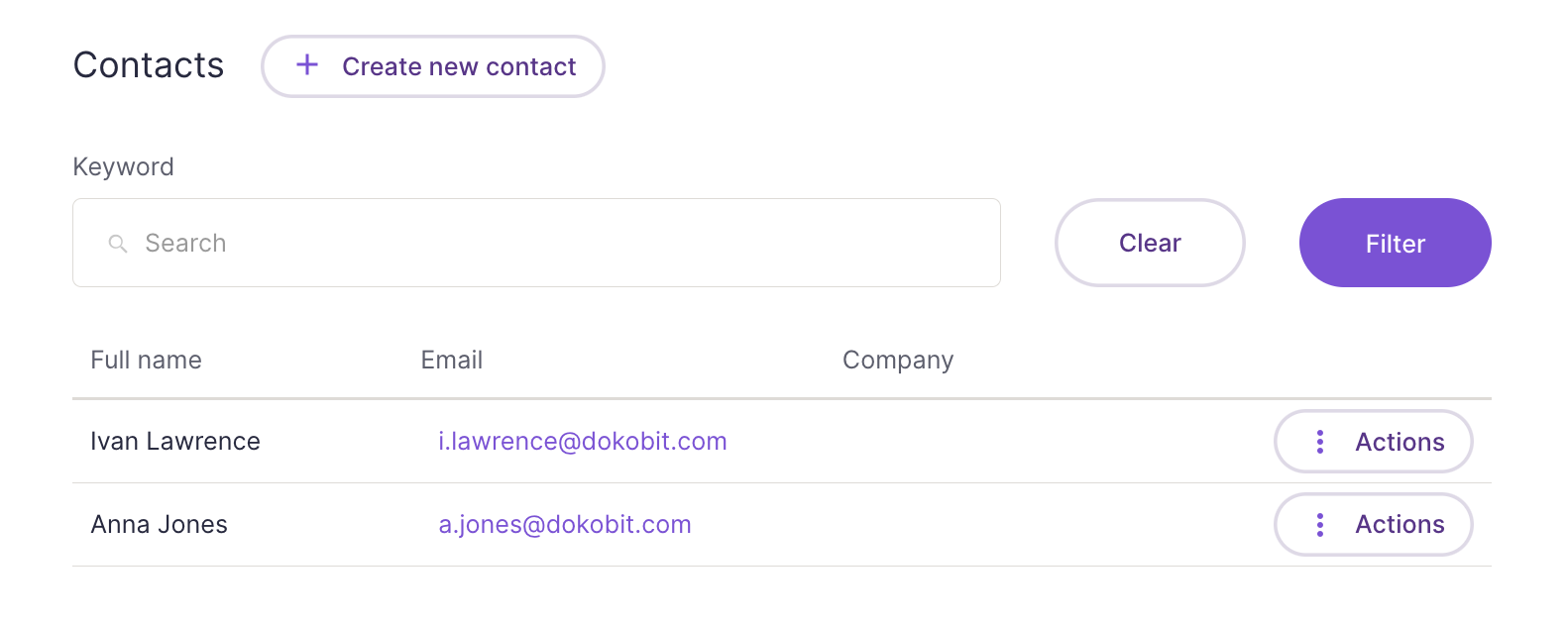
2.2. Press on the action of your choice.
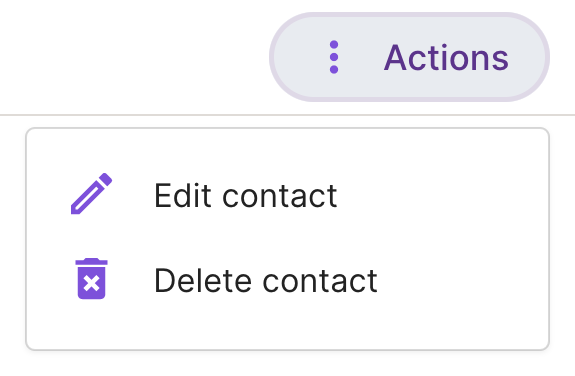
- If you choose to edit the contact, make all the necessary changes and press Save.
- If you choose to delete a contact, confirm the action by pressing Yes, delete it.
How to add a new contact category in your address book
3.0. Go to the "Address book" category of your settings, as described in the 1.0 – 1.2. steps of this support article.
3.1. In the subsection "Contact categories", press Create new category.

3.2. Fill in the required information and press Create.
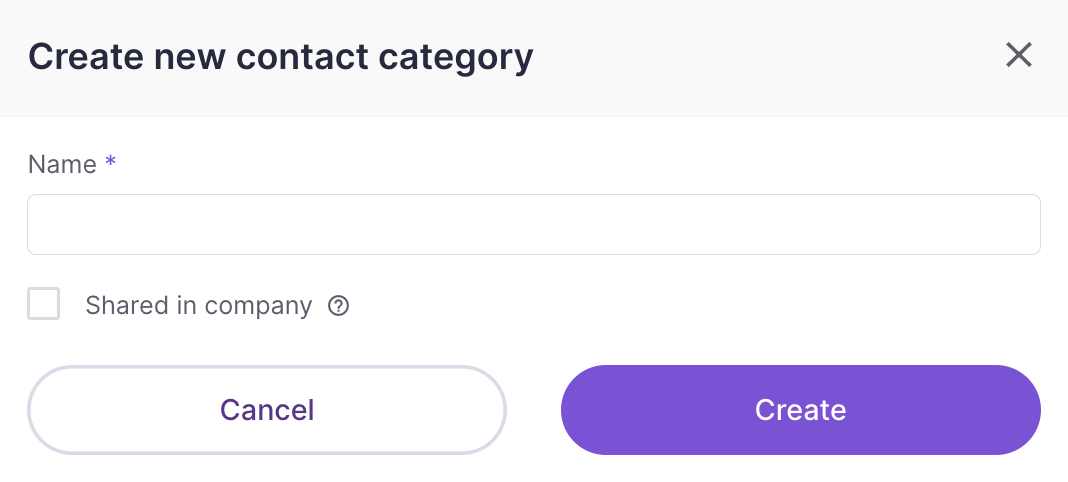
| Note: Business and Enterprise account owners and admins can also share the category among all of the added Dokobit user accounts by checking the box "Shared in company". |
How to edit or delete a contact category from your address book
4.0. Go to the "Address book" category of your settings, as described in the 1.0 – 1.2. steps of this support article.
4.1. In the subsection "Contact categories", press the Actions button located on the right and then pick the action of your choice.
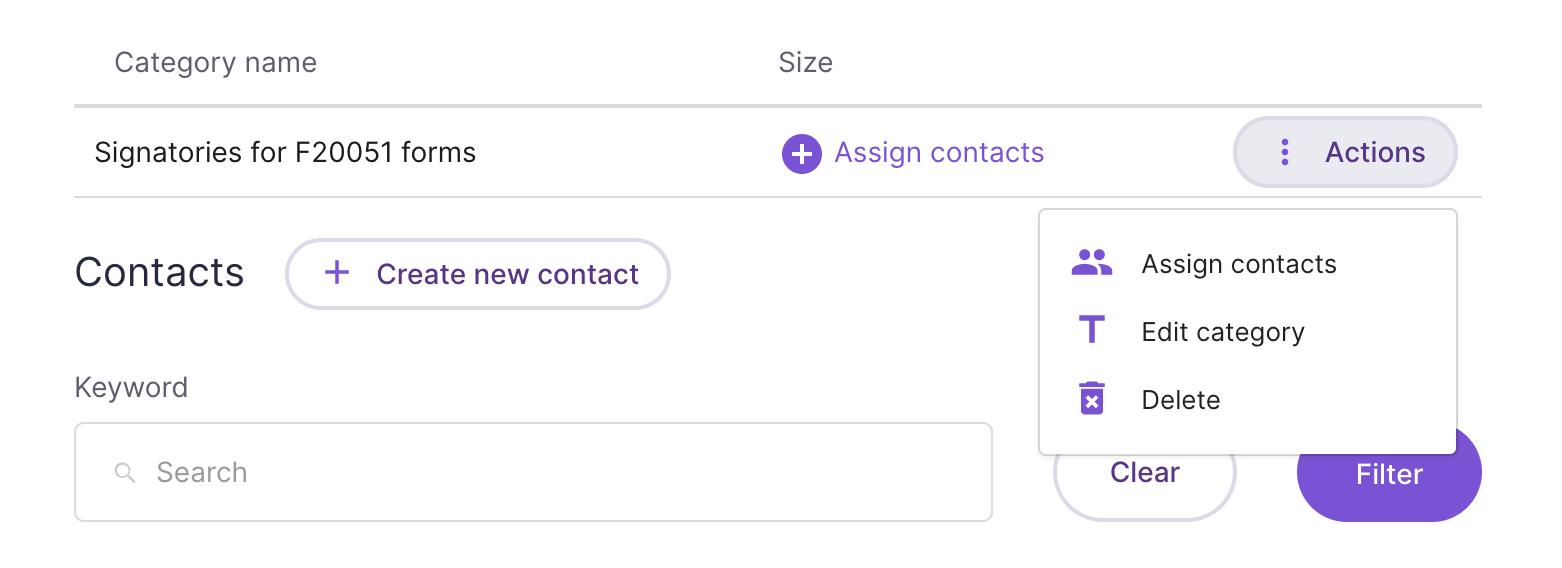
- If you choose to assign new contacts, make all the necessary changes and press Assign.
- If you choose to edit the category, make all the necessary changes and press Save.
- If you choose to delete the contact category, confirm the action by pressing Yes, delete it.