Business and Enterprise account owners can transfer ownership rights to another user within the same company account. This allows another user to take over full ownership and management of the account. Follow the steps below to complete the transfer.
| Note: If the current account owner is unable to transfer ownership rights to another user, a company representative should contact us at support@dokobit.com for further assistance. |
| Note: The following actions can be performed only by an account owner. |
1. Log in to your Dokobit by Signicat account.
2. Open the Settings by pressing the gear icon next to your name and email address.
3. From the menu on the left, select User management.
Here you will see an overview of all users in your company account.
4. Find the user you want to transfer ownership rights to. Press the Actions button next to their name, then select Transfer owner rights.
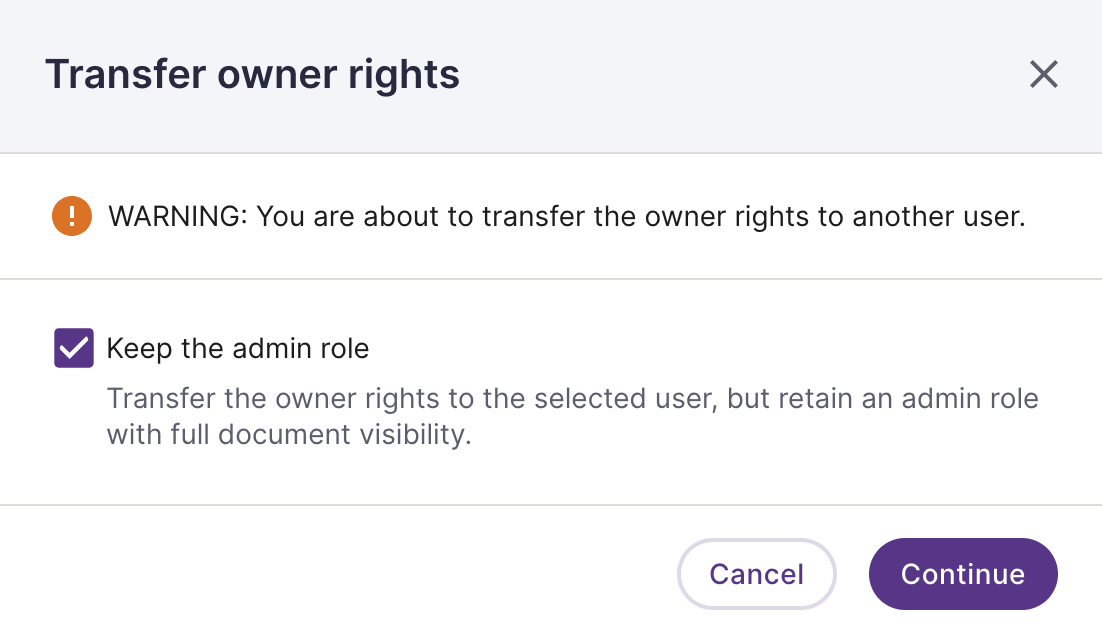
5. A pop-up window will appear. Mark or clear the checkbox to indicate whether you wish to retain an admin role in the company account after transferring the ownership rights. Then press Continue.
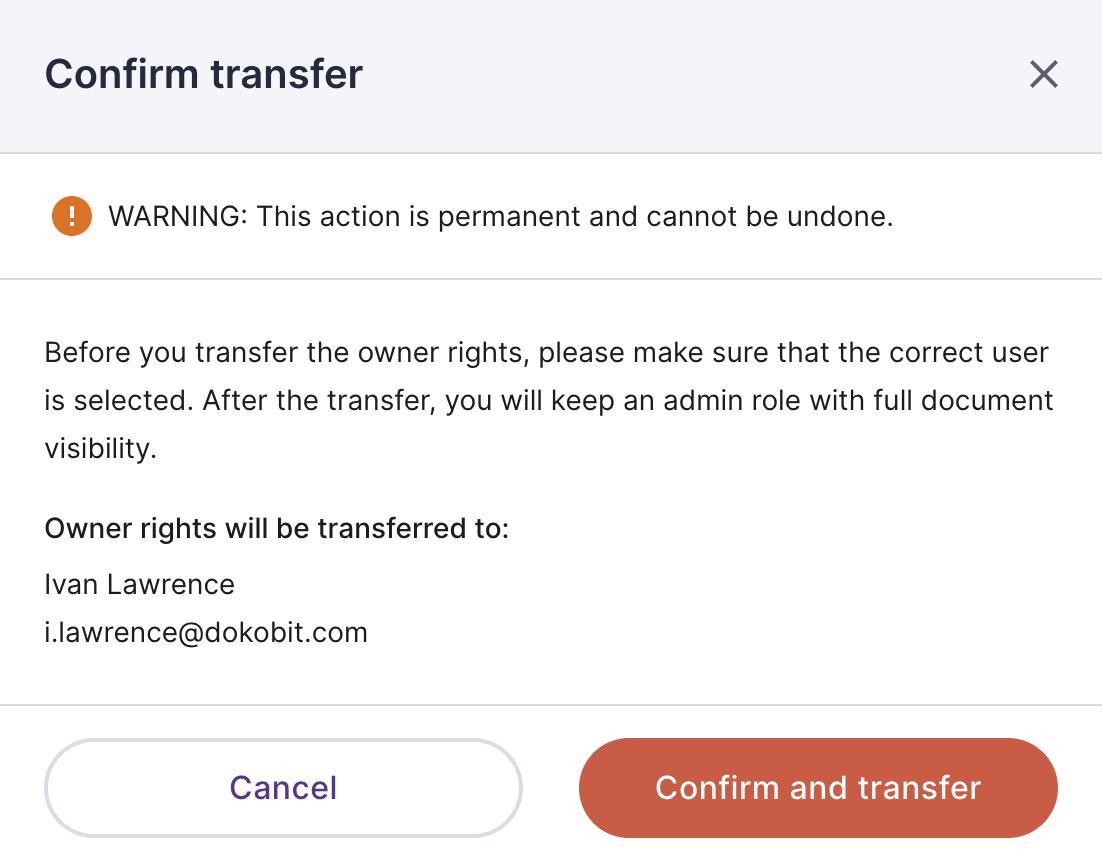
6. Press Confirm and transfer to confirm the action.
| Warning: The transfer of account ownership rights is an irreversible action. Once transferred, only the new account owner can reassign these rights. |