In this support article, we take a closer look at smart cards and USB tokens. We'll guide you through the process of setting up your computer to use these tools for accessing the portal and provide troubleshooting tips to help you resolve common issues that users sometimes encounter.
Supported smart cards and USB tokens
| Note: Smart cards and USB tokens are typically issued by authorized government institutions, such as citizenship and migration departments. To obtain one of these e-identification tools, please contact your local government authority for further details on the issuance process. |
Please refer to the table below to explore the full list of supported countries and their corresponding smart cards and USB tokens.
Country |
Supported smart cards and USB tokens |
Belgium |
Identity card |
Estonia |
Identity card, e-Residency card |
Finland |
Identity card |
Iceland |
Auðkenni smart card |
Latvia |
Identity card; eParaksts card |
Lithuania |
Smart cards: Identity card; Public servant card; Giesecke+Devrient smart card USB tokens: Aladdin eToken; SafeNet eToken; Thales (Gemalto) IDPrime; Bit4Id tokenMe EVO II; Idemia |
Poland |
Certum USB token; Certum smart card |
How to prepare your computer
| Summary: To use smart cards and USB tokens in the Dokobit by Signicat portal, your computer must have two types of software installed: a browser extension and the necessary drivers. Without both, the e-identification tools will not function properly. Additionally, make sure you have a compatible smart card reader connected or an available USB port. |
1. Open the following page: https://www.dokobit.com/downloads
2. To download the appropriate browser extension, select your operating system and the web browser you'll use to access the Dokobit portal, then press Download.
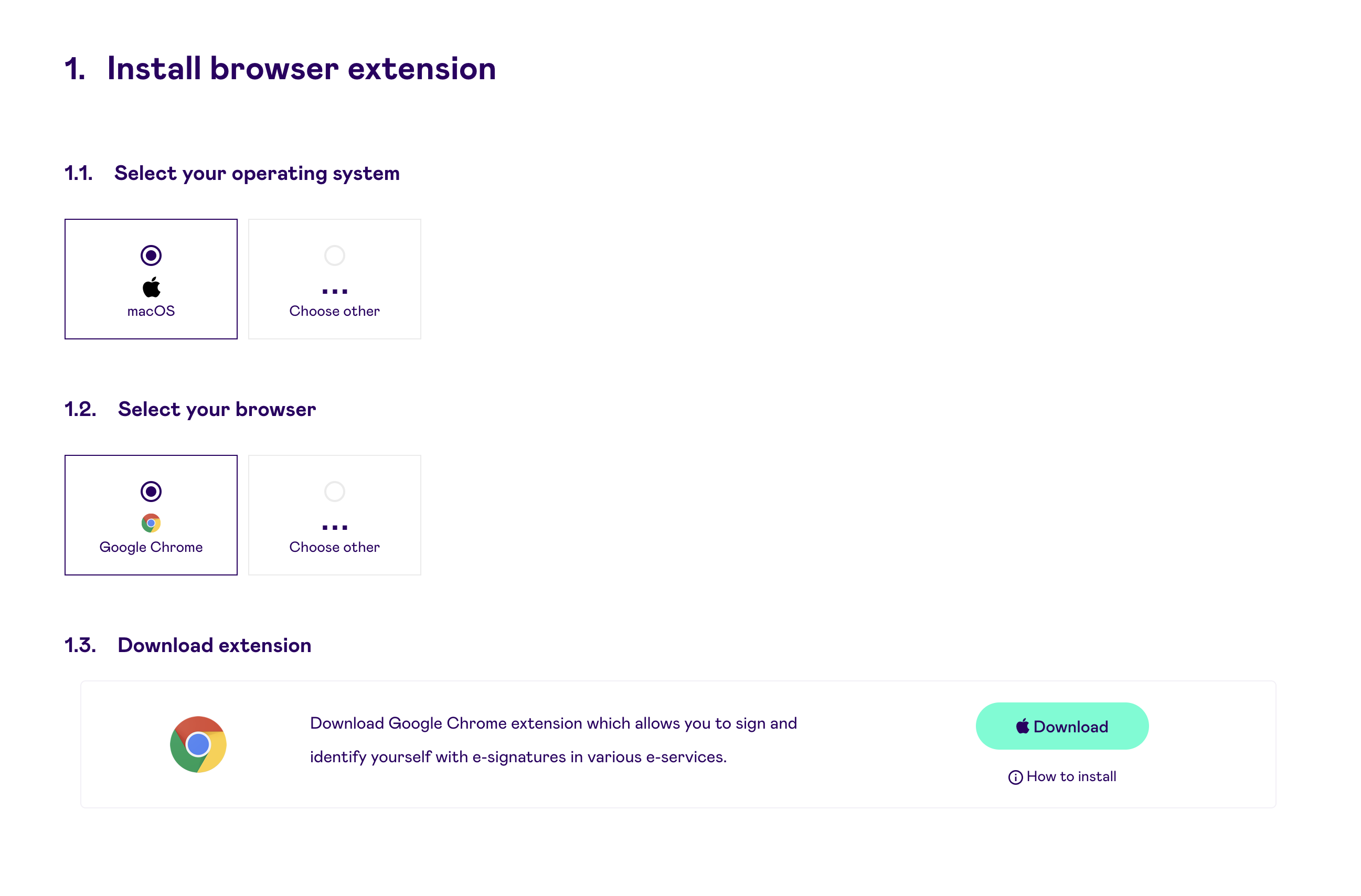
|
Additional step for Estonian and Latvian smart card users: If you plan to batch-sign documents, you must also download the Dokobit plugin, available here. |
3. To download the correct drivers, select the country that issued your smart card or USB token, choose your eID type, and then press Download from [X].
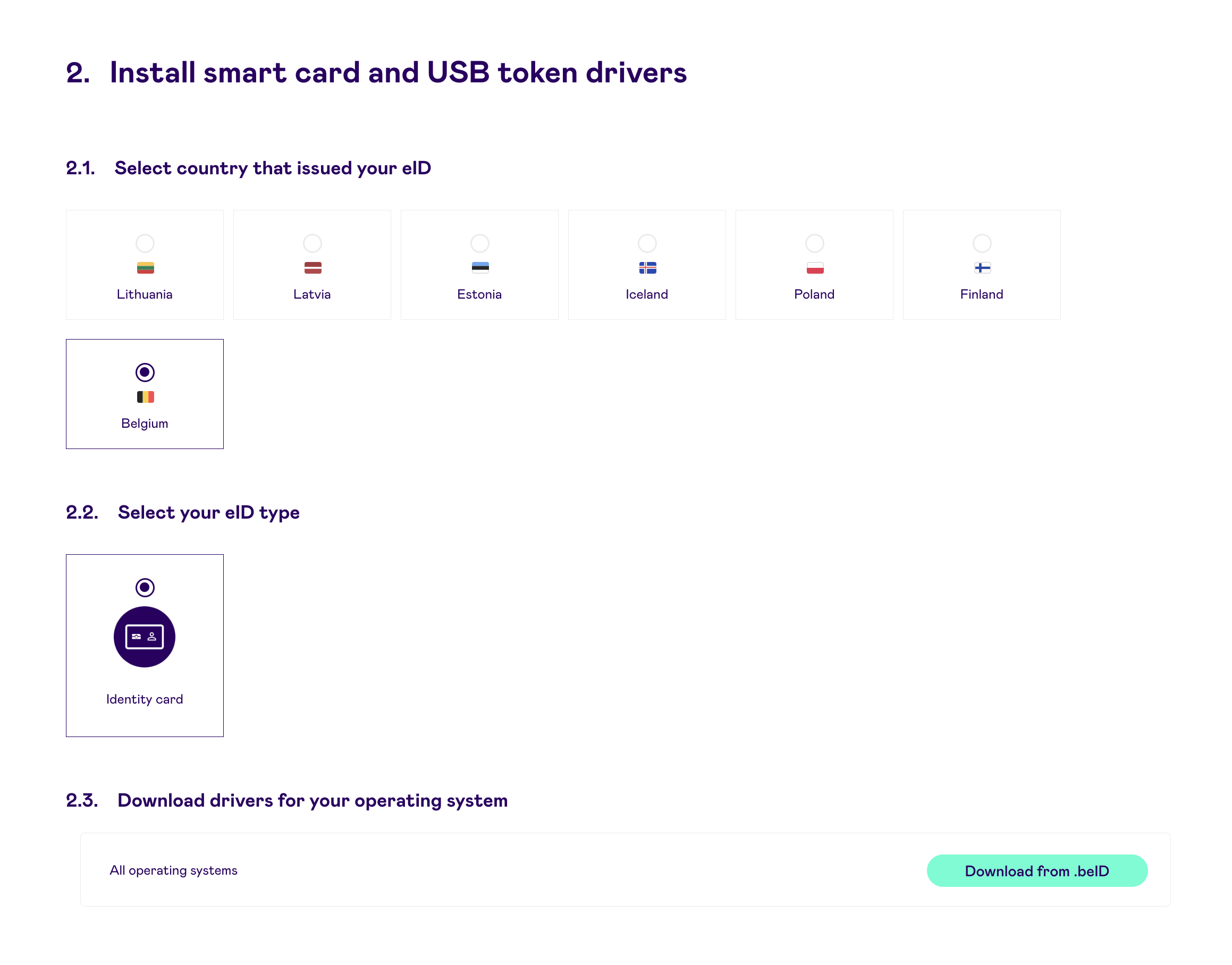
4. After downloading the browser extension and drivers, install them on your computer. Once installed, make sure the browser extension is enabled by following the instructions here:
Google Chrome | Firefox | Microsoft Edge | Safari.
When everything is set up, you can log in to the Dokobit portal using your smart card or USB token. Have your PIN codes ready, as these will be required for authentication and signing.
|
Need to test your setup? Check whether your computer was properly prepared by running a system test here. |
Troubleshooting
Once the necessary software has been downloaded and installed, your computer should be ready to access the portal and e-sign documents. However, in some cases, you might encounter an issue where your smart card or USB token is not being recognized. If this happens, we recommend reviewing the following checklist to resolve the problem:
- Make sure your card reader or USB token is properly connected to your computer.
- Reinsert the smart card into the card reader or disconnect and reconnect the USB token to your computer.
- Ensure that the smart card is inserted with the correct side facing up.
- Double-check that your installed extension is enabled in your web browser settings.
- Restart your computer to resolve any temporary hardware or software recognition issues.
- If you’re using a company-managed computer or accessing the portal through a company network, contact your IT support. They can check if the network, firewall, or antivirus software is blocking access to the Dokobit portal. To verify if your firewall allows requests to the portal, visit this page. If you’re prompted to enter PIN1, the firewall is not blocking access. If you’re not asked for a PIN, contact your IT support for assistance.
- Ensure that auth.dokobit.com:443 is whitelisted in your network proxy settings. If you’re unsure, contact your IT support to check and update these settings if needed.
- For Estonian smart card users: If DigiDoc4 successfully reads the data from the card but you still cannot access e-services, the issue may be caused by third-party software installed on your computer. For guidance on resolving this, please follow the instructions provided here.
|
Need further help? If none of the steps above helped resolve the problem, please contact our support team for additional assistance at support@dokobit.com. |