In this support article, our newcomers can find out how to register a Dokobit by Signicat account and log in to the portal.
How to register your first Dokobit account
| Note: When registering your first Dokobit account, you will automatically be assigned the "Free" plan, which can be upgraded to a paid subscription at any time if necessary. |
1.0. Go to the registration page. Select the appropriate country and e-identification tool (full list of e-identification tools supported in the Dokobit portal is available here) and proceed with the identity verification process.
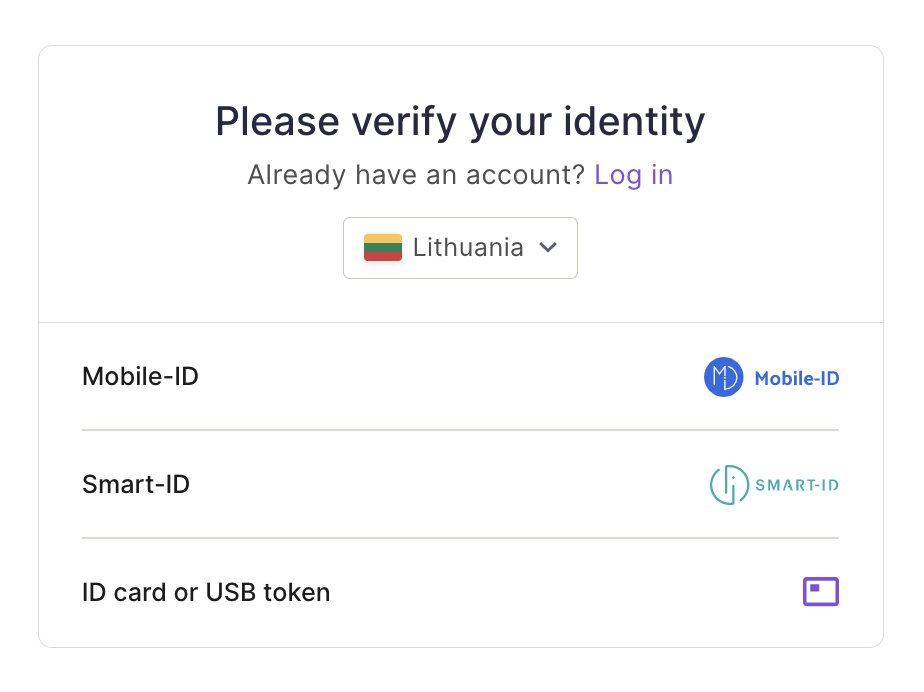
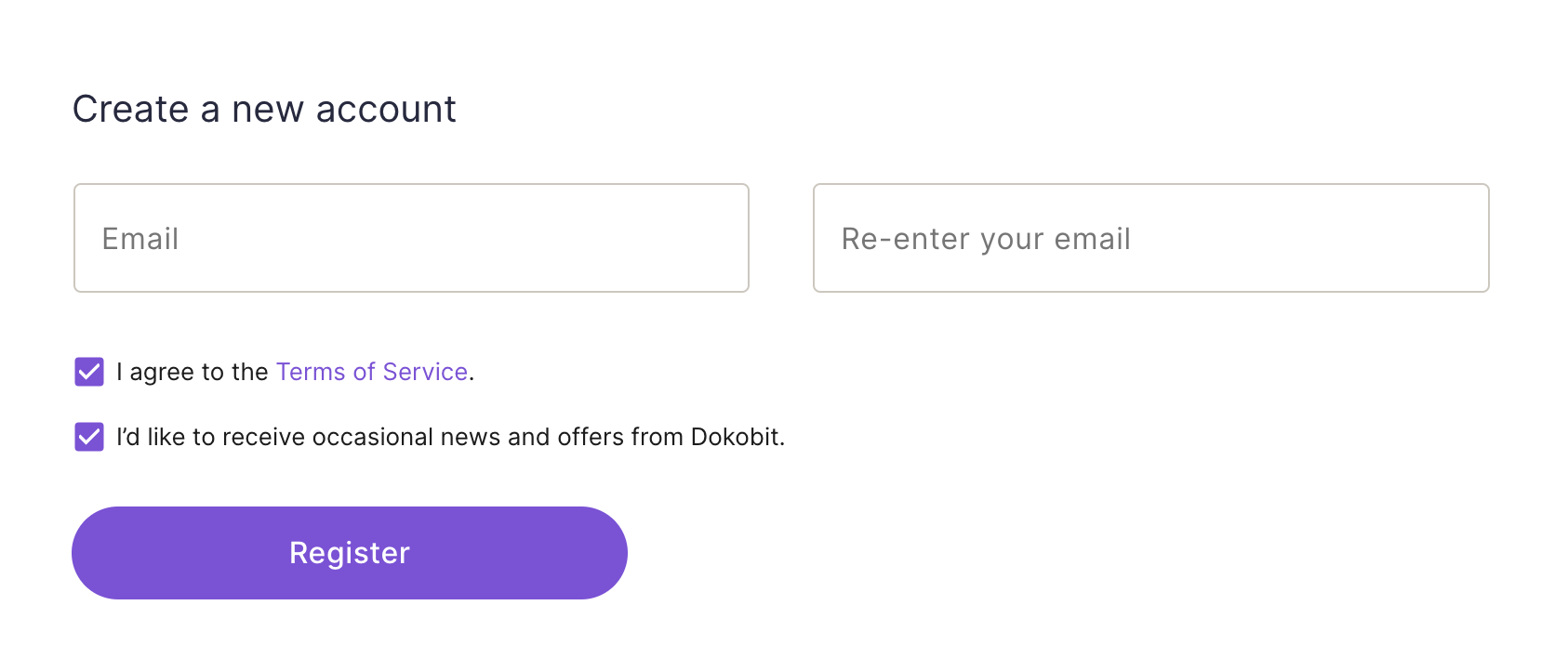
1.1. After successfully verifying your identity, enter your email address, agree to the Terms of Service, and press "Register".
1.2. A new page will load, asking you to complete the registration process by verifying your email address.
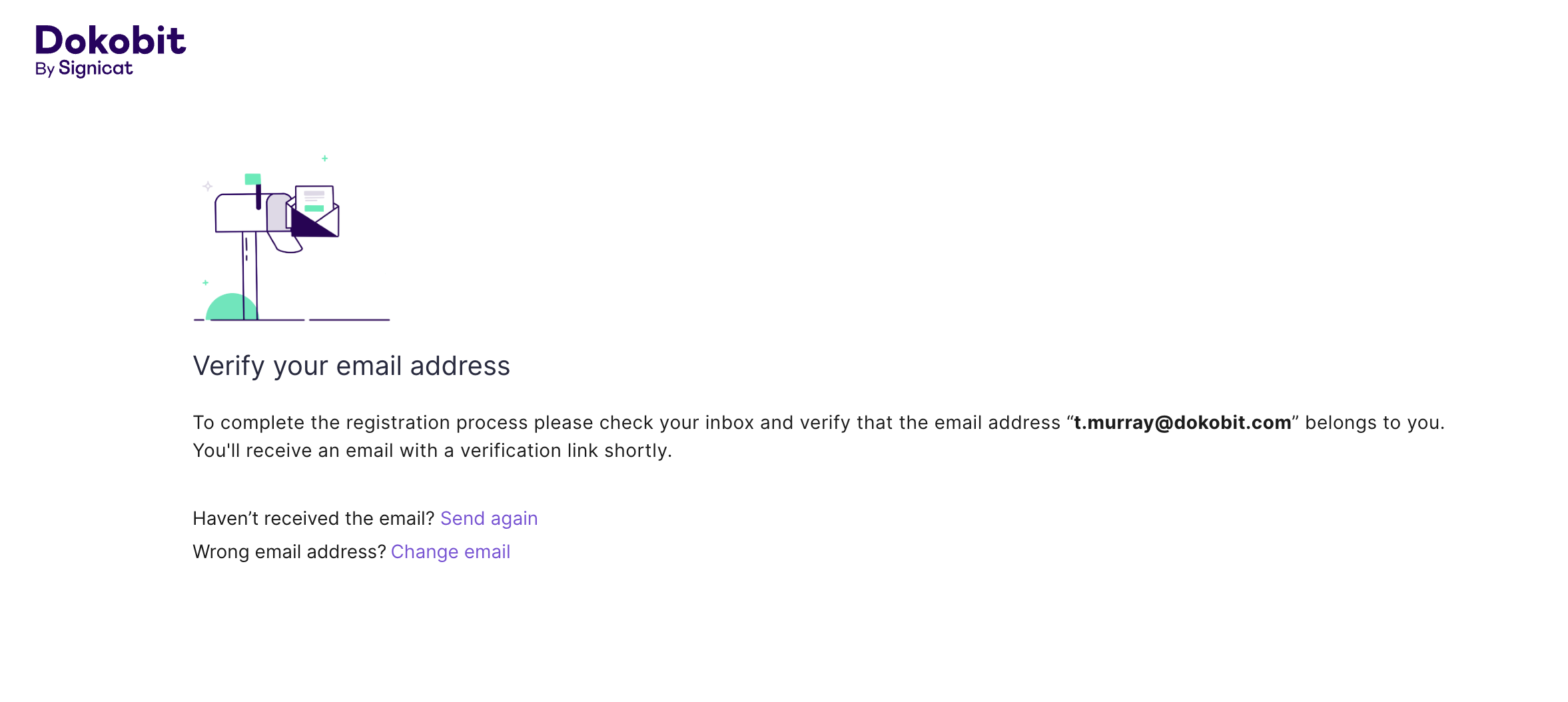
| Note: If, for any reason, you haven't received our account verification email, you can always come back to this page and press "Send again" or "Change email". Remember to check your spam folder. |
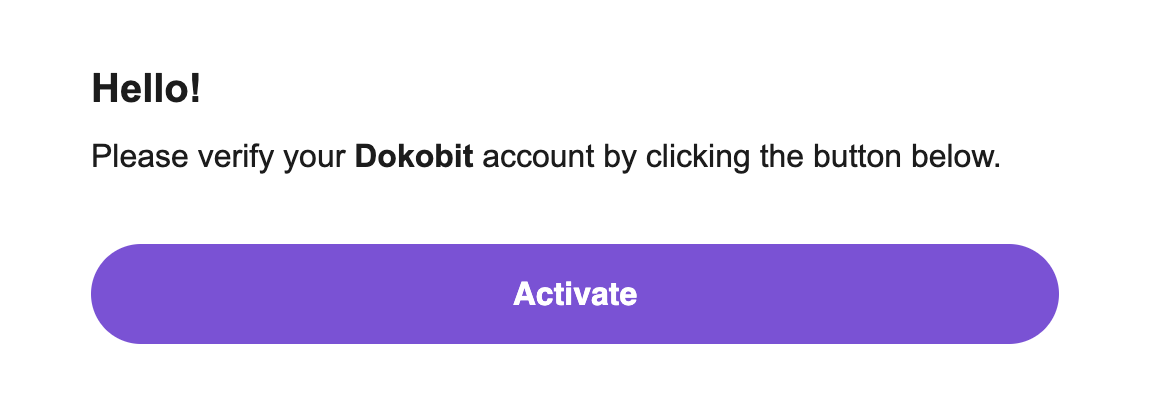
1.3. Check your inbox and open the account verification email. Verify your email address by pressing "Activate".
|
Note: If, for any reason, the "Activate" button doesn't seem to be verifying your email address, try the following steps.
|
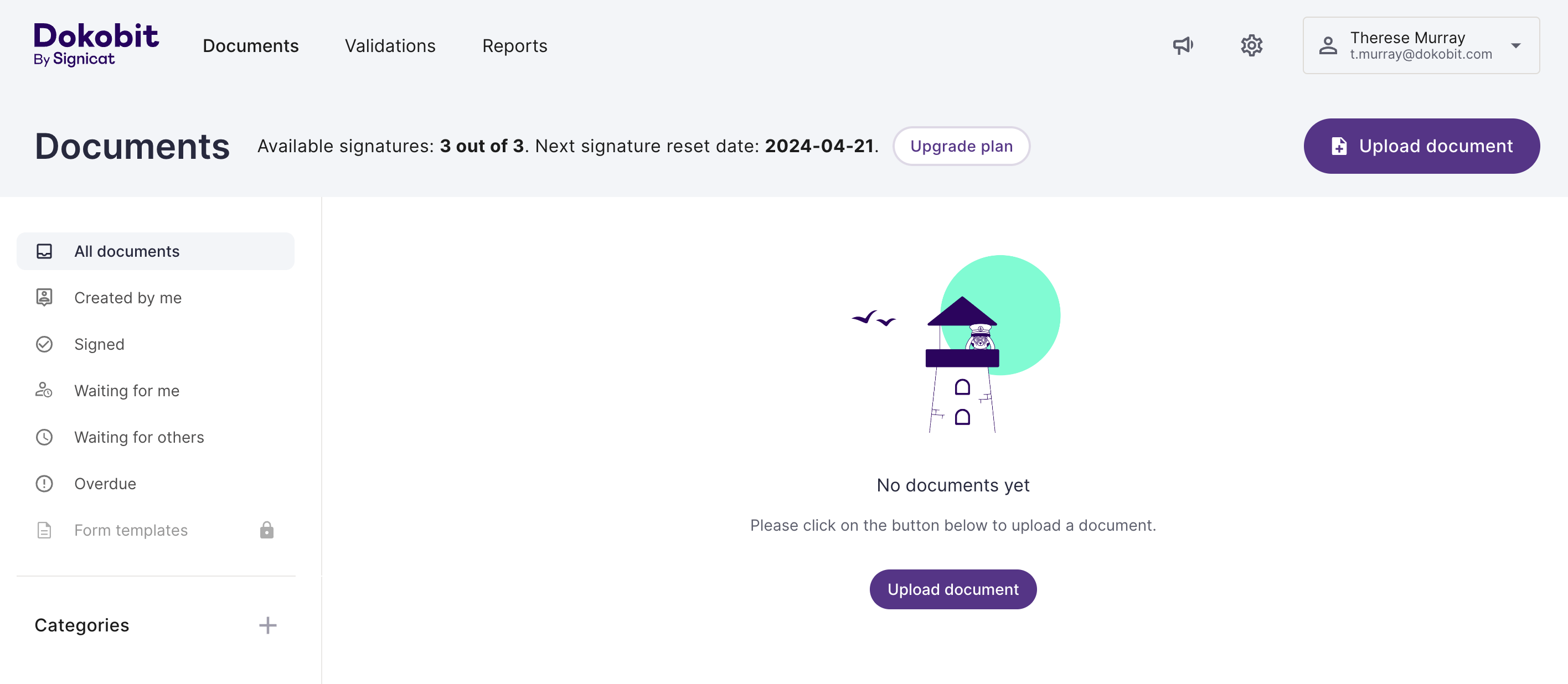
1.4. After successfully verifying your email address, you will be taken to the front page of the portal, where you can start using our services.
How to register an additional Dokobit account
2.0. Go to the registration page. Select the appropriate country and e-identification tool and proceed with the identity verification process.
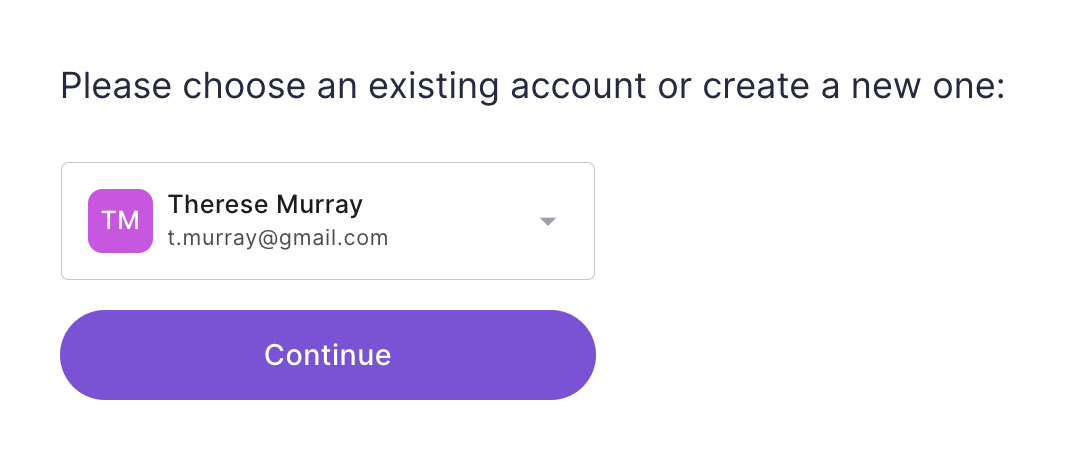
2.1. After successfully verifying your identity, a new page will load. Press on the drop-down menu.
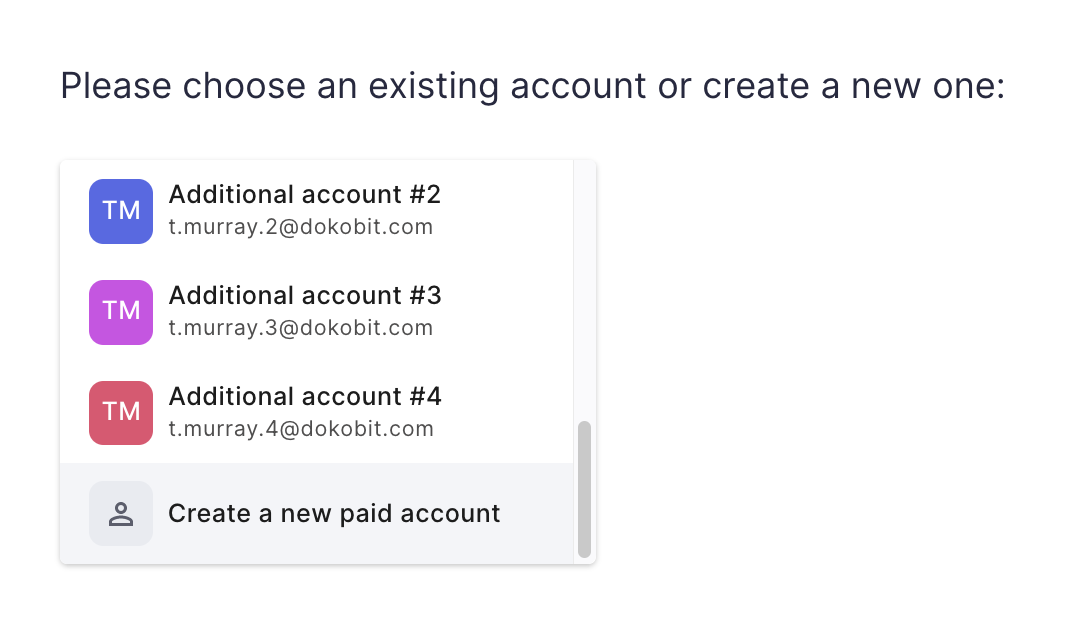
Scroll down to the bottom and choose "Create a new paid account".
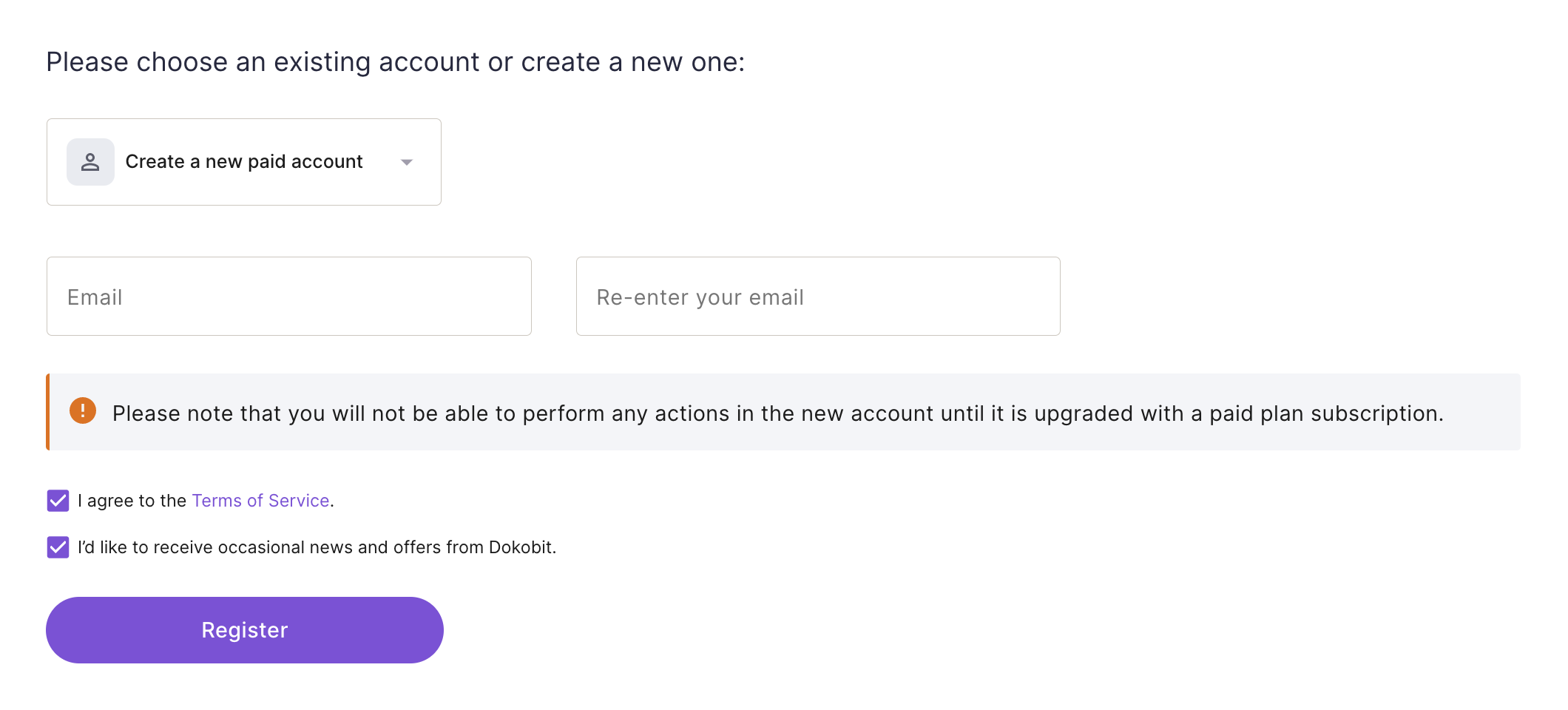
2.2. Enter your email address, agree to the Terms of Service, and press "Register".
2.3. A new page will load, asking you to complete the registration process by verifying your email address.
| Note: If, for any reason, you haven't received our account verification email, you can always come back to this page and press "Send again" or "Change email". Remember to check your spam folder. |
2.4. Check your inbox and open the account verification email. Verify your email address by pressing "Activate".
|
Note: If, for any reason, the "Activate" button doesn't seem to be verifying your email address, try the following steps.
|
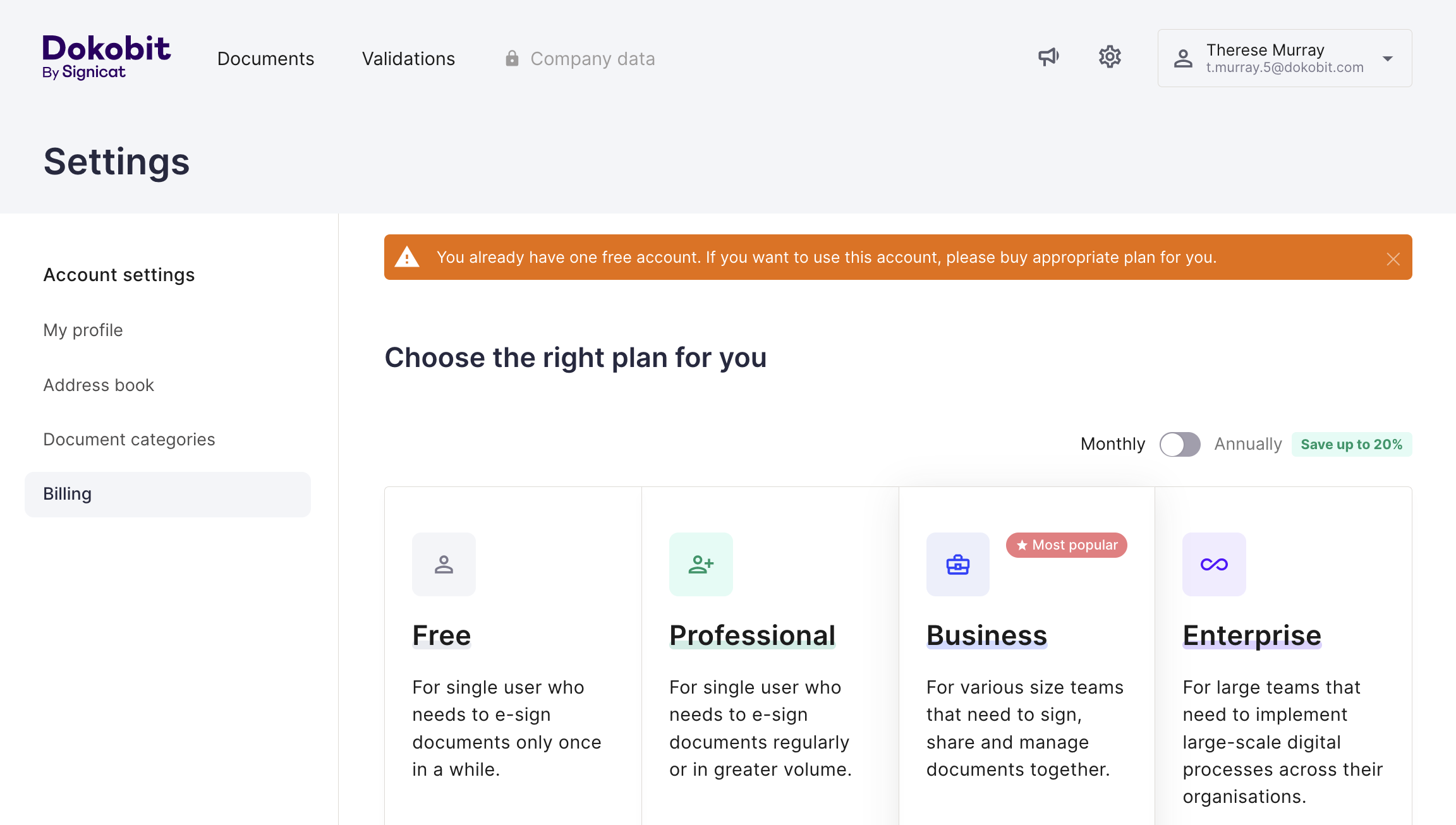
2.5. Once you verify your email address, you will then be required to purchase a paid plan subscription to unlock your additional Dokobit account.
How to log into the portal
3.0. Go to the login page.
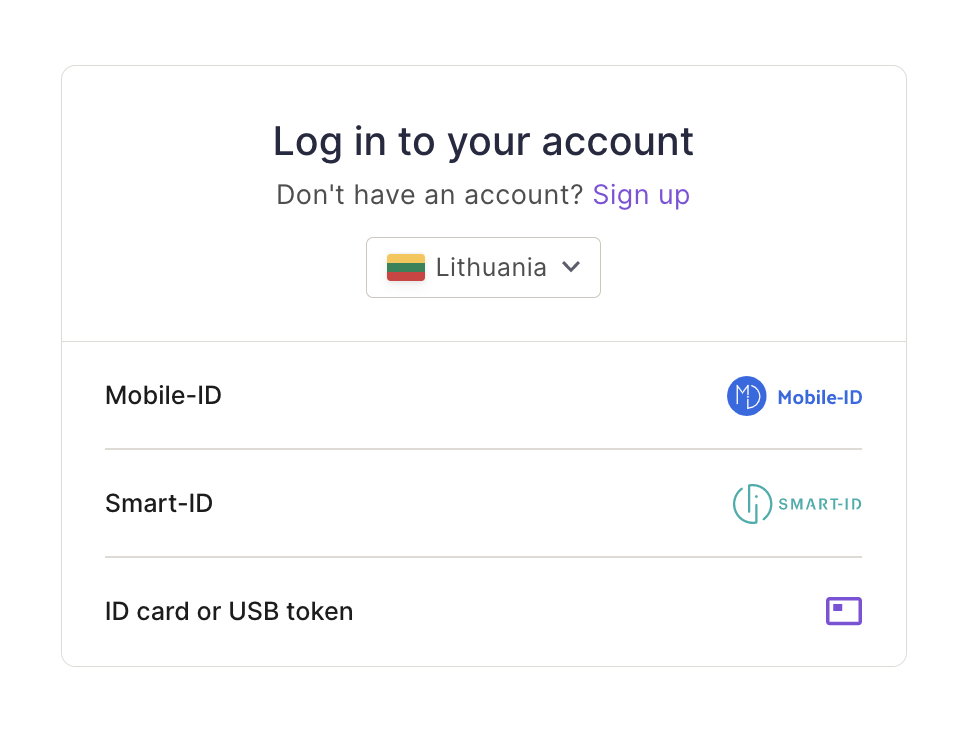
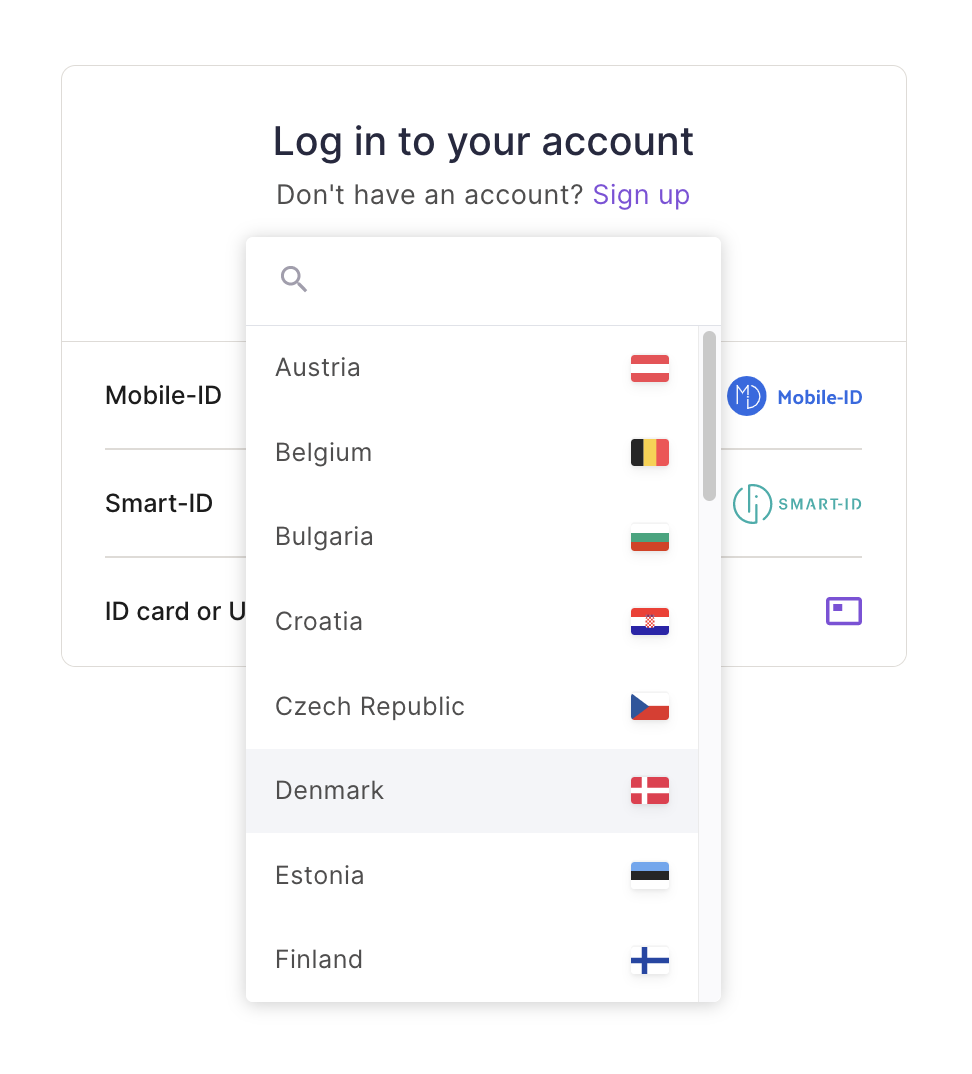
3.1. Select the appropriate country from the drop-down menu and pick the e-identification tool of your choice to proceed with the identity verification process to log in to the portal.
3.2. After successfully verifying your identity, you will be logged in to the portal.
| Note: If you have multiple Dokobit accounts, you will be automatically signed in to the one that was used most recently. |